Your contact form looks fine. The fields are working, the Submit button responds, and visitors see a success message.
So everything must be working, right?
Not necessarily.
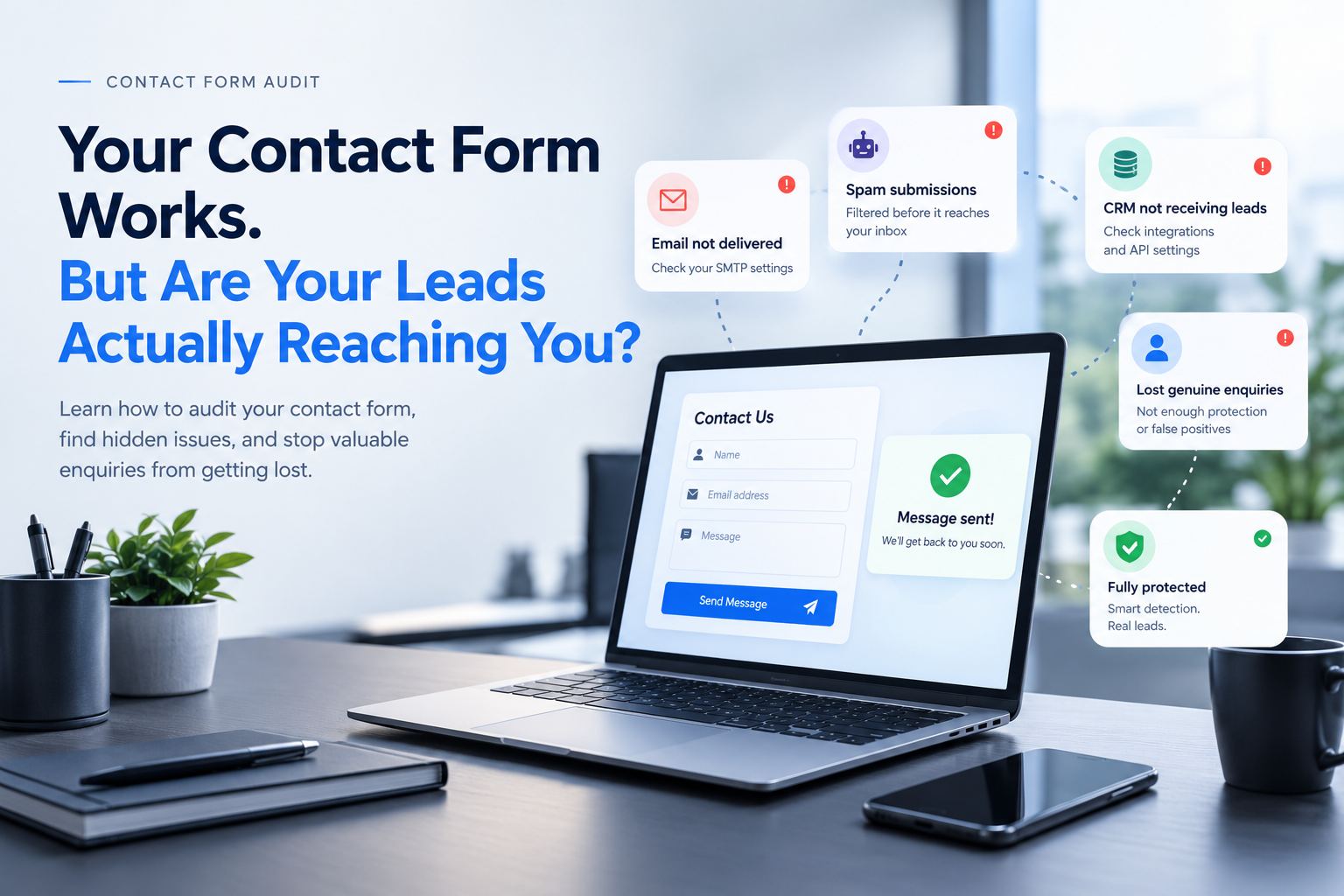
A contact form can appear perfectly functional while genuine enquiries quietly disappear somewhere between submission and your inbox. Sometimes the problem is email delivery. Sometimes it's a broken integration, an incorrect notification address, or spam filtering that catches messages that should have reached your team.
And here's the dangerous part: you might not realise you're losing leads until a potential customer contacts a competitor instead.
That's why every business website needs more than a working contact form. It needs a contact form that has been properly tested.
1. Don't Assume a Success Message Means Success
One of the most common mistakes website owners make is assuming that a successful submission message means the enquiry has been delivered.
It usually confirms that the form has accepted the submission. It doesn't necessarily confirm that an email notification has reached the intended recipient.
For example:
The form accepts the visitor's message.
The website displays "Your message has been sent."
The notification email fails to send.
Nobody in the business sees the enquiry.
From the visitor's perspective, everything worked. From your business's perspective, a potential lead has disappeared.
What to check: Submit a test enquiry and verify that the actual message arrives at the correct inbox. Don't stop at the confirmation screen.
2. Test Your Form From Different Email Addresses
A contact form might behave differently depending on the sender's email provider, your website's configuration, or your email security settings.
Send test submissions using different addresses, such as:
A Gmail account
An Outlook account
A business email address
Check both your inbox and spam or junk folders.
If you're using a CRM or another platform to receive enquiries, confirm that the test submission appears there too.
The goal is simple: make sure genuine enquiries can travel through your entire lead-management process.
3. Check Where Your Notifications Are Going
A surprisingly small configuration mistake can cause a big business problem.
Your website might still be sending enquiries to an old employee's email address, an inbox nobody checks, or a mistyped recipient.
Review these settings:
Is the notification email address correct?
Are multiple team members supposed to receive enquiries?
Is the sender address configured correctly?
Are email delivery errors being logged?
Does your website use a properly configured email delivery service?
If your business relies heavily on website enquiries, consider setting up a backup notification process. You don't want one email configuration issue to become a missed-sales problem.
4. Make Sure Your Form Is Easy to Complete
Not every missing enquiry is caused by technical failure.
Sometimes visitors simply give up.
A form asking for a name, email, phone number, company, address, budget, business size, preferred contact time, and a detailed project description may be asking too much too soon.
Start with the information your team genuinely needs to respond.
For most general enquiries, that might be:
Name
Email address
Subject or enquiry type
Message
You can always collect more details during the follow-up conversation.
Also, test your form on a mobile phone. Fields should be easy to tap, labels should be clear, and error messages should explain exactly what the visitor needs to fix.
A good form should make contacting your business feel effortless.
5. Check Whether Spam Is Hiding Genuine Enquiries
Now comes the issue many website owners overlook.
Your contact form may be receiving dozens of automated submissions, irrelevant sales pitches, backlink requests, and suspicious messages.
When the inbox becomes crowded, genuine customer enquiries become harder to identify.
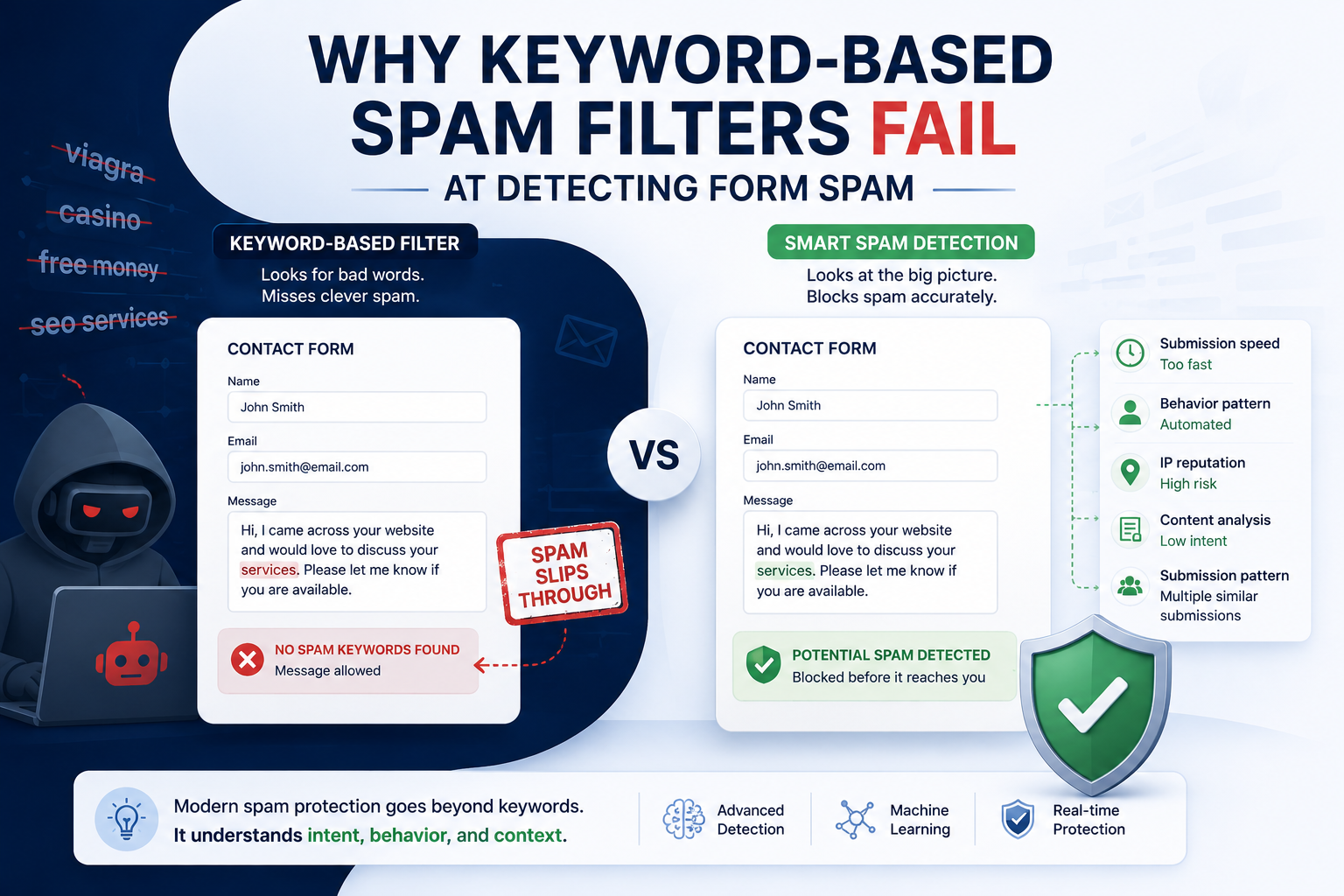
Worse, overly aggressive filters can sometimes classify legitimate messages as spam.
This creates two separate problems:
Too much spam: Your team wastes time reviewing irrelevant submissions.
Too many false positives: Real enquiries may be incorrectly flagged or held for review.
The answer isn't simply to block everything that looks unusual. A useful spam protection system should consider the context and intent of a submission, not just search for a handful of suspicious words.
That's the thinking behind more intelligent contact form protection.
6. Test What Happens After Someone Submits the Form
Your contact form is only one part of the customer journey.
What happens next?
Try following a submission through your entire process:
A visitor completes the form.
The website accepts the submission.
The visitor sees a clear confirmation message.
Your team receives the enquiry.
The enquiry is recorded in your CRM, if applicable.
Someone follows up with the potential customer.
Look for gaps.
Does the form create a CRM contact? Does the right person receive the notification? Is the submission stored somewhere if an email fails?
A form that collects information but doesn't deliver it to the right people isn't doing its job.
7. Run This 10-Minute Contact Form Audit
You don't need an expensive technical audit to start identifying problems. Use this quick checklist:
Submit a test enquiry from your desktop.
Submit another enquiry from your mobile.
Test using at least two different email providers.
Confirm that notifications reach the correct inbox.
Check your spam and junk folders.
Verify that CRM integrations are receiving submissions.
Review the form's required fields.
Check that error messages are clear and helpful.
Confirm that visitors see a proper confirmation message.
Review how spam and suspicious submissions are handled.
If you haven't tested your contact form recently, you might be surprised by what you find.
A Working Contact Form Should Deliver More Than Submissions
Your website's contact form is often the first step in a new customer relationship.
It shouldn't just collect messages. It should help genuine enquiries reach the right people while keeping unwanted submissions under control.
That means paying attention to three things:
Usability: Can visitors complete the form without unnecessary friction?
Delivery: Do genuine enquiries actually reach your team?
Protection: Can you reduce spam without losing legitimate messages?
SpamForms helps businesses protect their contact forms by analysing submissions in context, so unwanted messages can be held for review while genuine enquiries have a better chance of getting through.
Want to see how smarter contact form protection works?
Learn how SpamForms works and discover a better way to manage unwanted form submissions.